How To Encrypt Your Android Phone’s External SD Card

www.apk-soft.net/2014/01/Encrypt-Your-SD-Card.html

Most of us have important paperwork’s and other private data that we need to keep private. As we keep transitioning from Desktops to Smartphones, our private data are now more vulnerable than before. The reason being Smartphones are portable and it makes them easy target for thieves.
We don’t want that to happen with your devices, and neither we are the ones who can control it. Also many a times we are responsible for losing our smartphones due to our irresponsibleness.

So you must be always be prepared beforehand. Nobody knows when or how your smartphones can be lost or stolen, but with Android you do have the ability to encrypt your phone’s External SD Card. Which will render your phones SD card useless once your phone is lost.This is what usually happens when your phone gets lost or stolen.

Usually we have our phone secured with a lock pattern or code. In case somebody finds your lost android phone, they might not be able to access your cell phone’s content because of the security lock, but they can take out your external SD card and access its content on a PC. This is a main reason why you need to encrypt your Phone’s external SD card if you have important or private data on it.

Once your phone’s External SD card is encrypted, it will then be highly impossible for anyone to read its content on any other device except your Android phone. To be frank you can even encrypt your whole Android phone, but the reason why i won’t advise for that is, Encrypting your android phone will make it slower. Here is how you can encrypt your Android phone’s External SD Card.
How To Encrypt your Android Phone’s External SD Card

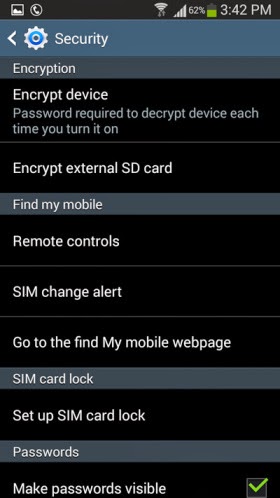
    Step 1: Open the Settings on your Android phone and navigate to the Security section. ( This might differ on different handsets )
    Step 2: Tap on Encrypt external SD card to start the process for encrypting your phone’s SD card.
www.apk-soft.net/2014/01/Encrypt-Your-SD-Card.html


Note: It is compulsory to select a password as the screen lock method if you want to enable encryption for the SD card. Unless you set the screen lock as a password, your phone will not allow you to encrypt the external SD card.

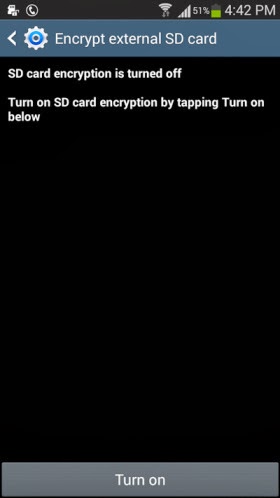
    Step 3: Once you have set a 6 digit password as the screen lock, you can then see the following option appear. Tap on Turn on card to encrypt your phone’s external SD card
www.apk-soft.net/2014/01/Encrypt-Your-SD-Card.html

    Step 4: Tap on Yes on the next screen to encrypt all files on your phone’s external SD card.

www.apk-soft.net/2014/01/Encrypt-Your-SD-Card.html

    Step 5: Next you will be prompted whether you want to encrypt all multimedia files. Tap on Yes or No according to your requirement. in case there are any multimedia files that needs to be encrypted on your phone’s SD card the tap on Yes.

www.apk-soft.net/2014/01/Encrypt-Your-SD-Card.html

www.apk-soft.net/2014/01/Encrypt-Your-SD-Card.html

    Step 6:
Next tap on Continue and enter the password when prompted.

www.apk-soft.net/2014/01/Encrypt-Your-SD-Card.html

www.apk-soft.net/2014/01/Encrypt-Your-SD-Card.html

    Step 7: Finally you will need to tap on Apply to start the encryption process. Remember according to the SD card’s size, it might take a while for the encryption process to be completed. I tested this feature on a 4GB SD card which took around 20 minutes to encrypt.

www.apk-soft.net/2014/01/Encrypt-Your-SD-Card.html

You can expand the notification bar to see the progress of the encryption process. Once the SD card is encrypted you will see the following notification.
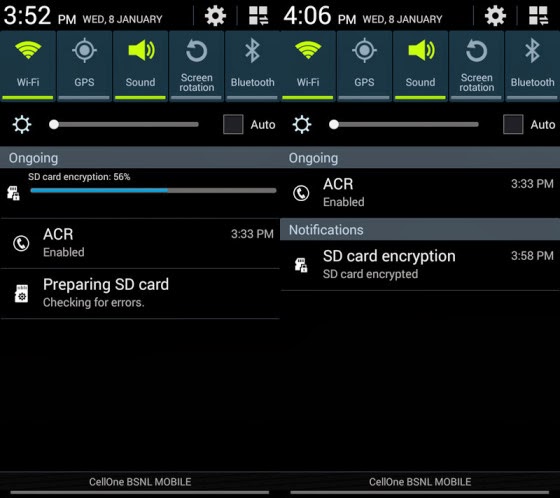
www.apk-soft.net/2014/01/Encrypt-Your-SD-Card.html 

That’s it and now the content on your SD card are completely protected. For any reasons if you want to decrypt the contents of the SD card then you can navigate to the Encryption settings on your android phone and tap on Turn off to decrypt the external SD card.

Samsung Smart Home platform to debut at CES 2014

Samsung Smart Home platform to debut at CES 2014

Getting in some early news, Samsung has – as part of CES 2014 – The Samsung Smart Home platform will enable users to manage all of their connected appliances and devices through a single application., a means by which users will be able to control all their connected home appliances (from refrigerators to air conditioners to smart light bulbs) through a single app on their compatible smartphone, tablet, smart TV, or wearable device.

According to Samsung, the company is also extending the Samsung Smart Home platform to third-party manufacturers in order to make the platform more widely usable by consumers.

When travelling abroad or even just when you’re not at home, you can use your smartphone or tablet to monitor your smart devices and controlling their functions, such as turning on the lights remotely.

Samsung will also introduce voice commands that can be used to control several appliances at once. For example, you could say ‘going out’ to your Samsung Galaxy Gear for your TV, lights and other select appliances to be switched off. Or you could say ‘good night’ to your TV remote for the TV to switch off and your lights to slowly dim until they are completely off.

www.apk-soft.net/2014/01/Samsung-Smart-Home-2014.html

To start, the service will cover three main areas, which Samsung identifies as :

      Device Control.
    Home View.
    Smart Customer Service.


Device Control, as you might guess, allows users to control home devices using a mobile device remotely. The feature also allows for voice commands so if, for example, you’re going to bed, you could tell your smart TV “good night,” and it would know to turn off and tell the lights to dim gradually.

Home View will give users a peek inside their own home with “in-built appliance cameras.”

Smart Customer Service will notify you “when it’s time to service appliances or replace consumables.”

What is perhaps more interesting than Samsung’s initial offering – which will roll out across Samsung’s own devices and appliances “in the first half of 2014″ – is that the manufacturer has developed a “Smart Home software protocol” that will allow other device and appliance manufacturers to gain compatibility with the system.

Samsung also notes in its release that it plans to expand the service to home-energy, secure home access, healthcare, and “eco home applications” through unspecified third-party partners. For the full announcement, hit the link below.

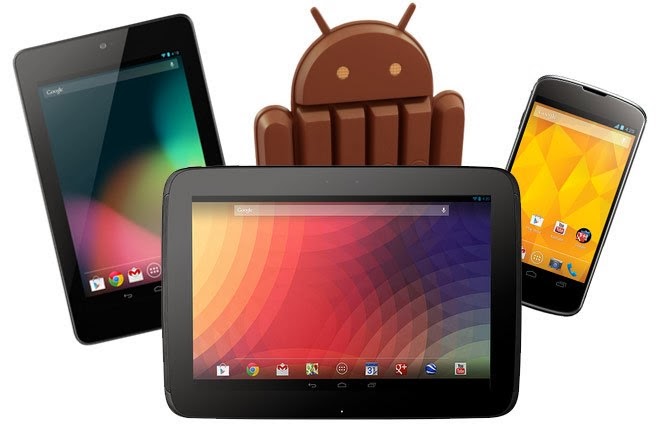
Install Official Android 4.4 KitKat on Nexus 4, Nexus 7 and Nexus 10

As the Google promised that Android 4.4 KitKat will be released soon for the all Nexus devices; so, finally, the latest Android 4.4 KitKat is released by Google through the OTA. While, many of the users seem to have received the latest update via OTA, and some are still waiting because it totally depends on the region so it might take some more before it reaches you. However, the Google has already uploaded the Android 4.4 KitKat Factory images for all the devices and definitely, one can update their Android version using that image.


install-Android-4.4.html


If you are the one who haven’t received the newest Android 4.4 KitKat update on your Nexus device then you can follow the below stepwise guide to update it manually and start using it before anyone else. Today, in this post will show you the step-by-step guide on how to install Official Android 4.4 KitKat on Nexus 4, Nexus 7 and Nexus 10. Your task is to follow the below tutorial intensively without missing any of the steps, otherwise your device may be bricked. To stay safe side, it’s advisable to take a complete backup of your current ROM. Let’s begin the tutorial.
Note: As this is the official update, so you don’t have to root your Nexus device.

Things To BE Checked:

    Charge your Nexus device up to 70-80%.
    Make sure you have enabled the USB debugging.
    Your device bootloader must be unlocked.

Download Drivers and ROM files:

    Android SDK - Install it on your PC.
    Android 4.4 KitKat Update - Extract it on your Computer’s desktop.


Steps To Install Official Android 4.4 KitKat on Nexus 4, Nexus 7 and Nexus 10

Step 1: If you have recently enabled the “USB Debugging” option then you have to check box stating “RSA Key” from your Nexus device. Otherwise, your device will not be detected in fastboot mode.

Step 2:
Go to the below path, which states the installation of “Android SDK” on your computer.

    C:Program Files\Android SDK\sdk\platform-tools

Step 3: For ease, you have to copy the files from extracted folder of your Android 4.4 Update file to the above path.

Note: Copy the files, not the folder.

Step 4: From there only, you have to open the command prompt. To do so:

    Press and hold “Shift Key” and press “Mouse Right-Click”. A sub-menu will appear.
    Now, choose the option “Open command window here“.

Step 5: In the command prompt window, you have to write following command to boot your device in to Bootloader mode.

    adb reboot bootloader

Step 6: Once you get in to bootloader mode, please close the command window.

Step 7: Now, double-click on “flash-all.bat” file to start the Android 4.4 KitKat update process.

Step 8: Further, you have to just wait and watch the process, but don’t do anything. Otherwise, your device will be bricked.

Step 9: Once the process is completed, your device will be rebooted automatically.

That’s it! This time your device will boot-up with the new Nexus logo, this means you have successfully installed the official Android 4.4 KitKat on Nexus device.

In case, if you need any help then you can connect with us using the comments box below.

What to expect form CES 2014

What to expect form CES 2014
apk-soft.net

When one thinks of Las Vegas, mobile gadgets are far from the first thing that comes to their mind. They’re probably not even in the top five list. But as any devoted geek should know, for the past 15 years, Sin City has been the host for one of the world’s largest technology trade shows – the Consumer Electronics Show, or CES for short.


During the event, which is set to begin on January 7, 2014, both major and not-so-major electronics manufacturers will get together under one roof to showcase their latest products and innovations. And to no surprise, many new smartphones and tablets get announced each year at CES, which is why we’ve always followed the show with a great dose of interest.
Now, while CES is an event that gets a lot of attention from the media, prior to its launch, there’s usually very little information as to what exactly is going to be unveiled. However, there’s plenty of leaks for us to analyse and use to make our predictions. In fact, the rumor mill has presented enough information for us to compile a list of smartphones, tablets, and other smart products that we will likely see at CES 2014.

1. Samsung

apk-soft.net

While we aren’t really sure what Samsung is going to announce at its CES 2014 event, we think we know what’s not going to be announced. It is unlikely to see the company’s newest tablets(Note pro) as those are said to be coming in February, and there’s a near-zero chance of seeing the Samsung Galaxy S5 on stage. On the other hand, we might get to see a new Samsung Galaxy Camera model and a new Windows Phone 8 smartphone, if recent rumors are to be trusted. Also, we won’t be surprised if the company updates us on the state of its Exynos system-on-chip solutions.


2. LG


apk-soft.net

 
The rumor mill is building up hype around an “LG G3” smartphone, yet we aren’t expecting to see the G2′s successor at CES 2014. On the other hand, LG might announce the rumored LG G2 mini – a mid-range cousin of the LG G2. Another exciting device that LG is said to be working on is its very own smartwatch. Dubbed “G Arch“, it could be announced alongside a heath-tracking wristband referred to as “G Health“. What’s more, LG could be working on its own mobile SoC, and CES could be the right time for it to be introduced to the world.

3. Sony
apk-soft.net

With all those Sony smartphones leaking from here and there, it goes without saying that CES could see the announcement of at least some of them. These may include a 6-inch phablet with an octa-core SoC and the entry-level Sony Xperia E2. But the star of the show should be the Sony Xperia Z1s, or whatever it ends up being called. This is said to be a smaller, yet no less capable variant of the Xperia Z1. Last but not least, Sony’s third smartwatch could be announced as well.

4. NVIDIA

apk-soft.net

Yup, NVIDIA has its own CES 2014 event as well. This leads us to believe that a next-gen Tegra SoC could be in the works, and we might get to learn more about it at the show. If a Tegra 5 is indeed bound to be announced at CES, then NVIDIA could also introduce us to some of the upcoming devices the chip would be powering – a new Tegra Note tablet, or why not a successor to the NVIDIA Shield console? That is more of a guess, however, so don’t get too excited ahead of time.

5. Asus
apk-soft.net

We know that Asus is developing a new tablet, on which Android and Windows can happily coexist, and CES could be when we’ll get to give it a try. And if that’s not cool enough, Asus could also announce a new Padforne model at its CES 2014 event. Dubbed Asus Padfone X, the Android 4.4-powered device will brag with its top-notch hardware specs.

6. Lenovo
apk-soft.net
The newest products in Lenovo’s portfolio are to be showcased at CES 2014 – we’re expected to see new smartphones, tablets, and everything in between. Chances are that both Android- and Windows-based hardware (Dual boot) will be presented by the company.

7. Acer

apk-soft.net

Acer is also going to be present at CES 2014. However, the company is not giving us any hints as to what products we should be expecting to see from it. New smartphones, new tablets, new laptops, or all of the above? We can only guess
© 2013 TeRmiNal GAMMERS - All Rights Reserved
Design by Mas Imall
Back to Top